

Account setup
If your company already has a Gierd account, you may need to contact your account administrator to get access.
Create your account
Section titled “Create your account”-
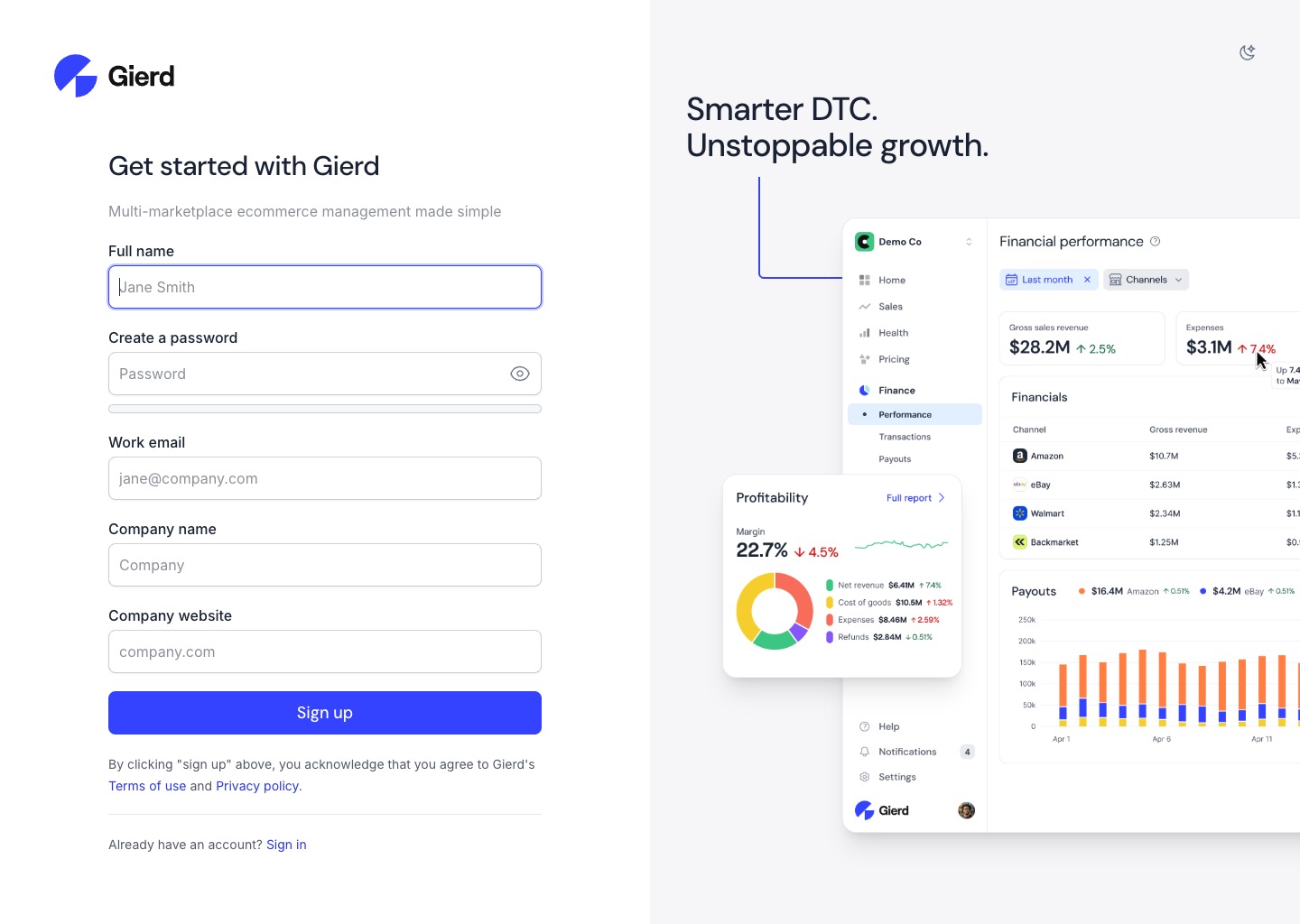
Go to the sign-up page
Section titled “Go to the sign-up page”Go to gierd.app/signup.
-
Fill in your details
Section titled “Fill in your details”Field What to enter Full name Your name Create a password A password for your Gierd login Work email Your business email address — personal addresses (Gmail, Yahoo, etc.) are not accepted Company name Your organization’s name — Gierd pre-fills this from your email domain Company website Your company’s website URL -
Submit
Section titled “Submit”Click Sign up. Gierd creates your account and takes you into the onboarding wizard.
Onboarding wizard
Section titled “Onboarding wizard”After signing up, you land in an onboarding wizard which asks a few questions about your role and goals, then routes you to the right starting point.
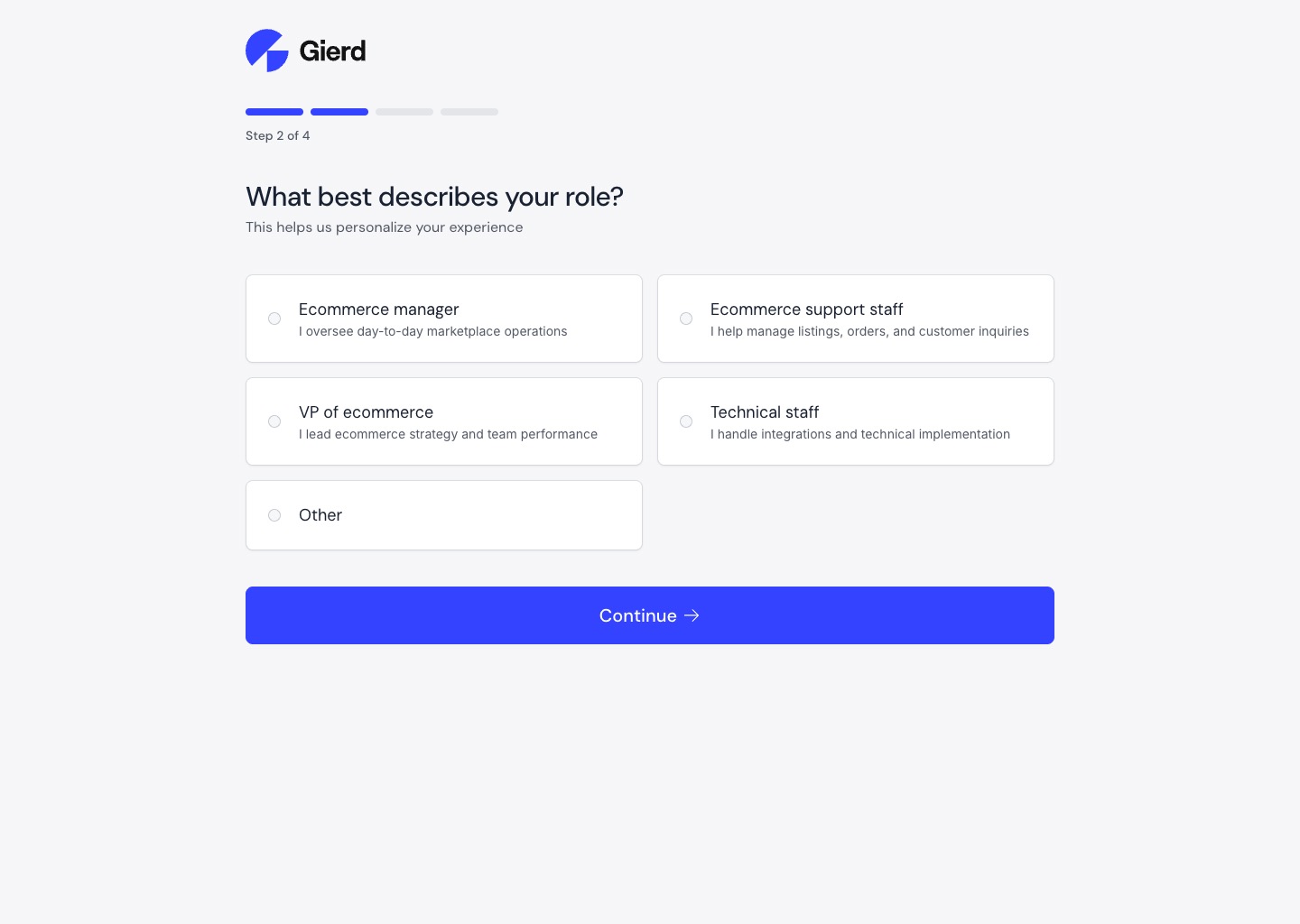
If it prompts you to connect a marketplace, you can do it now or skip it — the next page in this guide walks you through it.
Configure your organization settings
Section titled “Configure your organization settings”After completing the wizard, confirm your organization settings before going further:
-
Open Settings
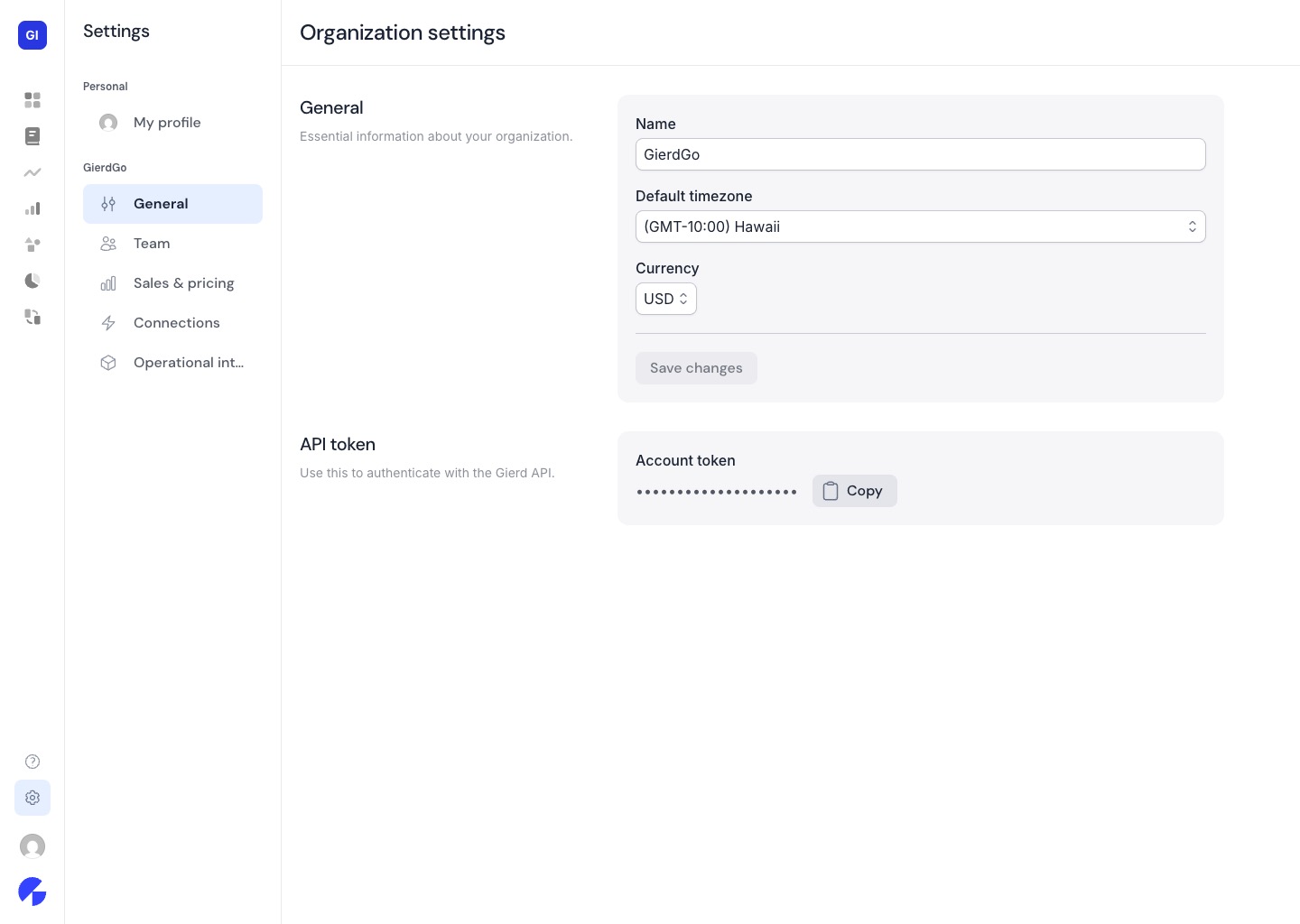
Section titled “Open Settings”Click Settings in the left sidebar (gear icon), then click General.
-
Review and update your details
Section titled “Review and update your details”Setting What to check Name Your organization name as it should appear in Gierd Default timezone Used for date/time display throughout the app — defaults to Pacific Time (US & Canada) Currency Used for financial reporting -
Click Save changes.
Next, we’ll look at how Connections work and get your first marketplace syncing data into Gierd.