

Connect your first marketplace
If you already connected a marketplace during the onboarding wizard, skip ahead to the Product tour.
Connecting a marketplace is the most impactful first step in Gierd. Once Amazon is connected, your orders, inventory, and fees start syncing — and the Pricing Engine has the data it needs to calculate your channel minimums and recommend prices.
This guide walks through connecting Amazon Seller Central. Amazon is the most common first connection and the primary anchor for all pricing decisions in Gierd: prices are calculated for Amazon first, then syndicated to your other channels.
What syncs from Amazon
Section titled “What syncs from Amazon”Once your connection is active, Gierd pulls the following data from Amazon:
| Data type | What it feeds |
|---|---|
| Orders | Sales dashboard, revenue reporting |
| Inventory | Catalog, stock levels, days of supply |
| Listings & offers | Catalog, Pricing Engine |
| Fees | Channel minimums in the Pricing Engine |
| Marketplace payouts | Finance ledger, payout tracking |
Fees are especially important: Amazon’s fulfillment and referral fees feed the Channel Min Price calculation in the Pricing Engine, which sets the floor below which Gierd will not reprice.
Before you begin
Section titled “Before you begin”You’ll need:
- An active Amazon Seller Central account (Seller Central, not Vendor Central)
- Your Seller ID — find it in Seller Central under Settings → Account Info → Merchant Token
- Your Seller Name — the name your business trades under on Amazon (visible in Seller Central under Settings → Account Info)
- A decision on fulfillment type: FBM (Fulfilled by Merchant), FBA (Fulfilled by Amazon), or both
Connect Amazon
Section titled “Connect Amazon”-
Open Connections
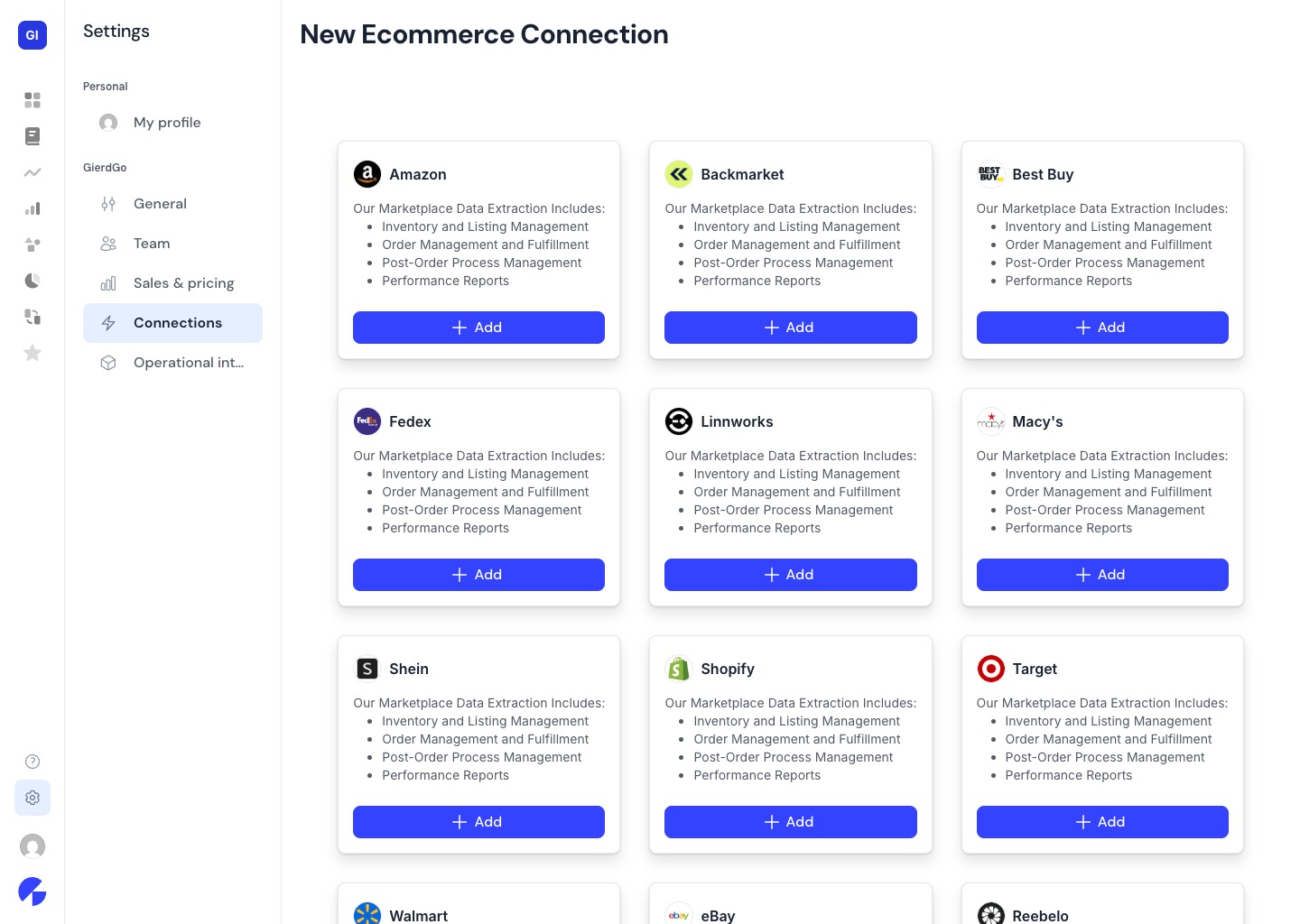
Section titled “Open Connections”In Gierd, go to Connections in the left navigation. Click Add Connection and select Amazon.
-
Fill in the connection form
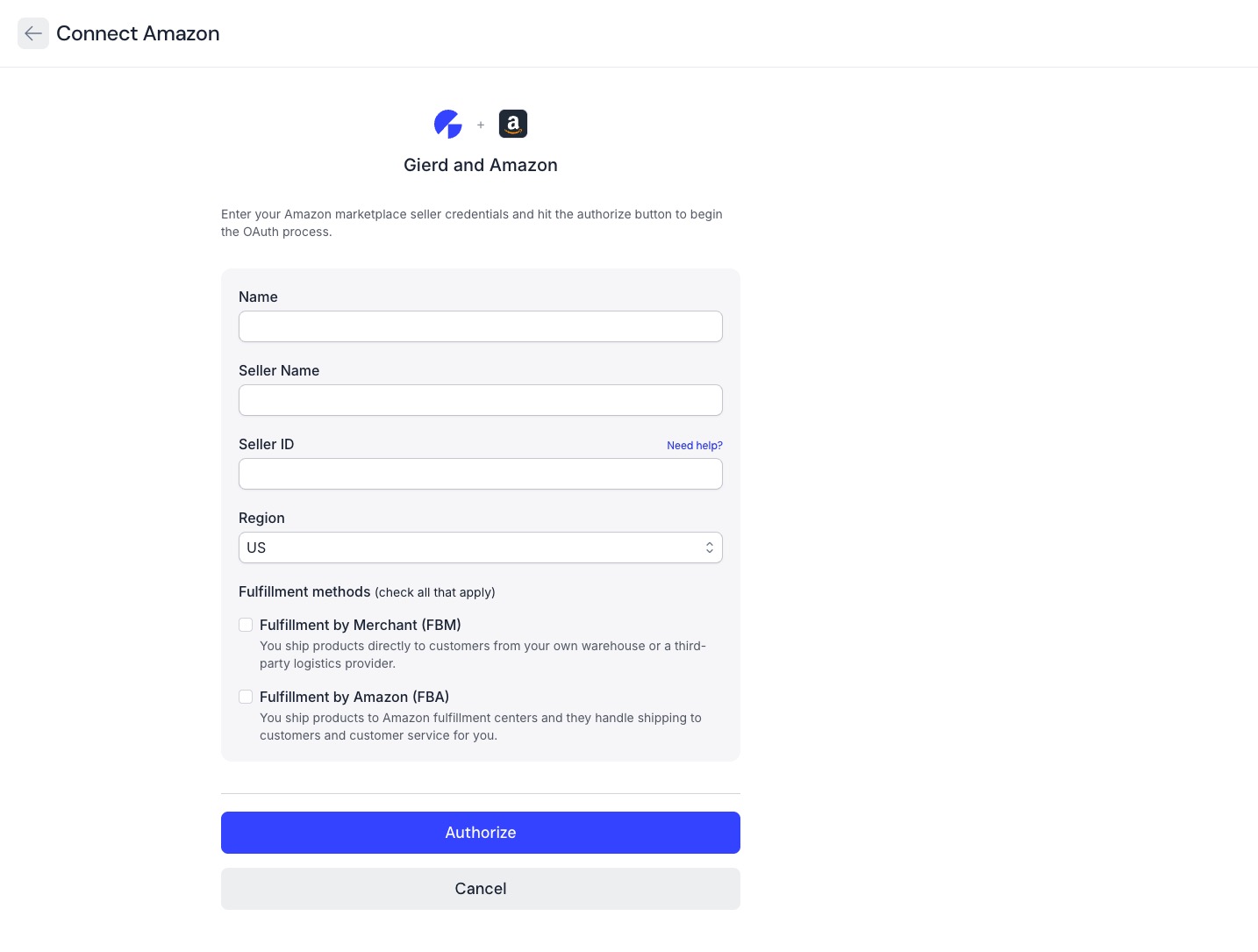
Section titled “Fill in the connection form”Complete the fields:
- Name — a label for this connection in Gierd (e.g. “Amazon US”)
- Seller Name — your seller name as it appears in Amazon Seller Central
- Seller ID — your Merchant Token from Seller Central (Settings → Account Info → Merchant Token)
- Region — defaults to US; change this only if your account is registered in a different Amazon marketplace region
- Fulfillment methods — check all that apply:
- FBM (Fulfilled by Merchant) — you ship directly to customers from your own warehouse or a third-party logistics provider. Learn more on sell.amazon.com
- FBA (Fulfilled by Amazon) — you ship inventory to Amazon fulfillment centers and Amazon handles shipping and customer service. Learn more on sell.amazon.com
-
Authorize with Amazon
Section titled “Authorize with Amazon”Click Authorize. You’ll be redirected to Amazon’s consent page to grant Gierd access to your Seller Central account.
Review the permissions and click Confirm. Amazon redirects you back to Gierd.
-
Save the connection
Section titled “Save the connection”Back in Gierd, click Save. Gierd validates your credentials and begins syncing data in the background.
After connecting
Section titled “After connecting”Gierd starts pulling your historical orders, inventory, listings, and payout data immediately after you save. The initial sync may take longer for accounts with large order histories — check the connection status on the Connections page.
Once syncing is complete:
- Your orders appear in Sales
- Your inventory levels appear in Catalog
- Your Amazon fees are loaded into the Pricing Engine and used to calculate Channel Min Prices
Next, we’ll take a Product tour to see how each section of Gierd is organized.